
Ledger is a hardware wallet that allows you to manage your TRON on-chain assets on TRONSCAN through your Ledger device.
Prerequisites
- Ensure you have at least one Ledger hardware device
- Ensure you have installed Ledger Wallet (formerly known as Ledger Live) software
- Ensure you have installed the latest version of Chrome browser
- Ensure the firmware on your Ledger hardware is updated to the latest version
Install the Tron (TRX) App on Your Device
- On your computer or mobile device, download and install the latest version of Ledger Wallet software.
- Open Ledger Wallet and navigate to the "My Ledger" section.
- Connect and unlock your device. If prompted to allow access, select "Allow".
- In the app list, find the "Tron (TRX)" app and click the "Install" button.
- Follow the prompts on the software and device until the installation is complete.
Log in to TronScan Using Ledger
Need Help?
Install the latest TRON app on your Ledger Nano S, Ledger Nano X or Ledger Blue device to manage TRX with the TRONSCAN website. The TRON app is developed and supported by the TRON community.
Before you start
- Ledger Live is ready to use.
- The latest version of Chrome is ready to use.
- The latest firmware is installed on your Ledger device.
Install the TRON app
1. Open the Manager in Ledger Live.
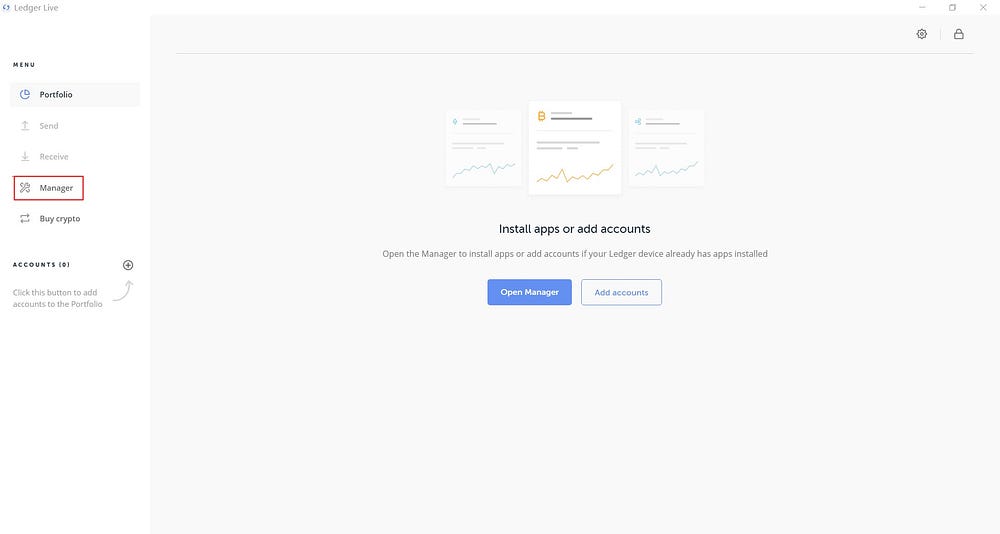
2. Connect and unlock your device.
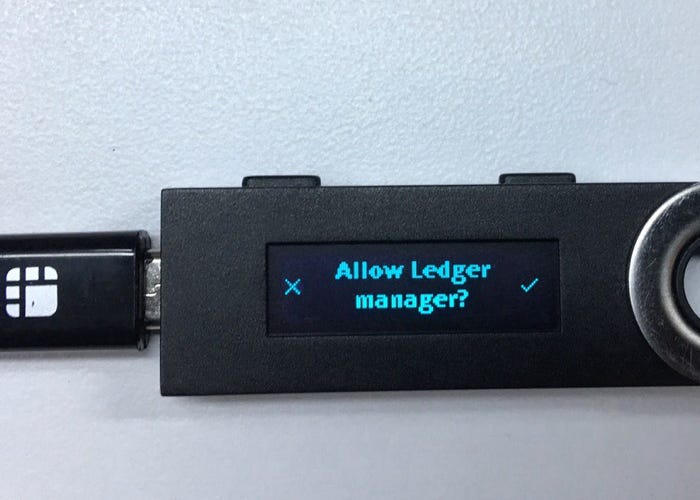
3. If asked, allow the manager on your device.
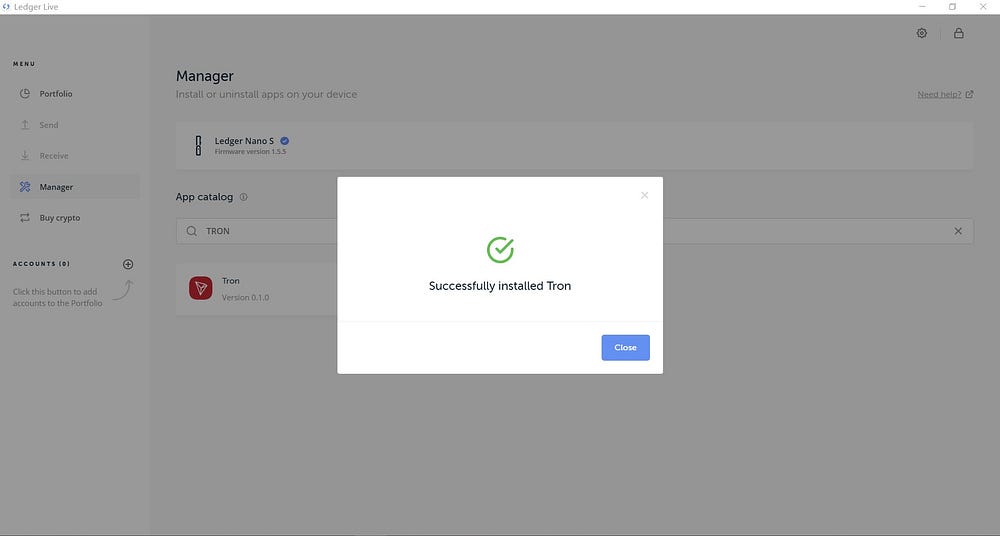
4.Find latest TRON app in the app catalog.

5.Click the Install button of the app.
- An installation window appears.
- Your device will display Processing…
- The app installation is confirmed.
Connect to TRONSCAN
1. Open the TRONSCAN website in Chrome.
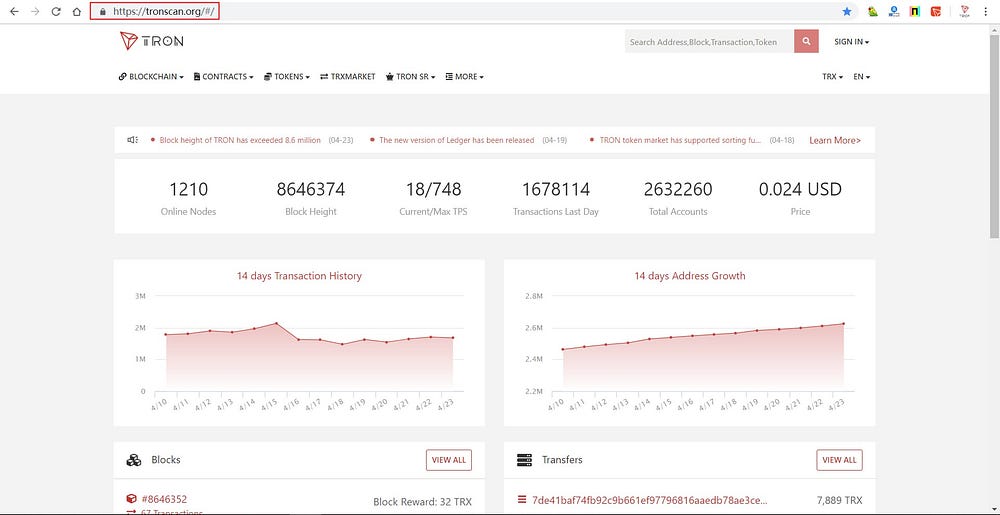
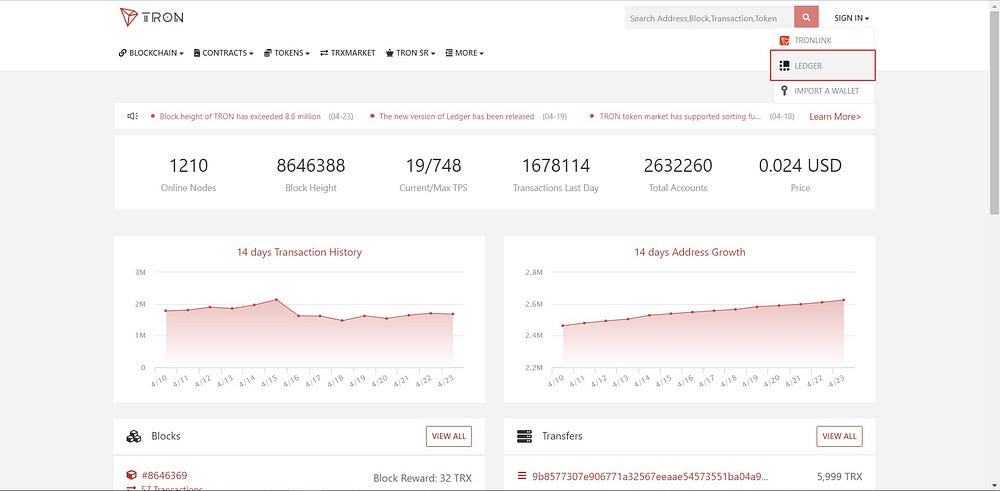
2. Click SIGN IN at the top right corner and click Ledger.
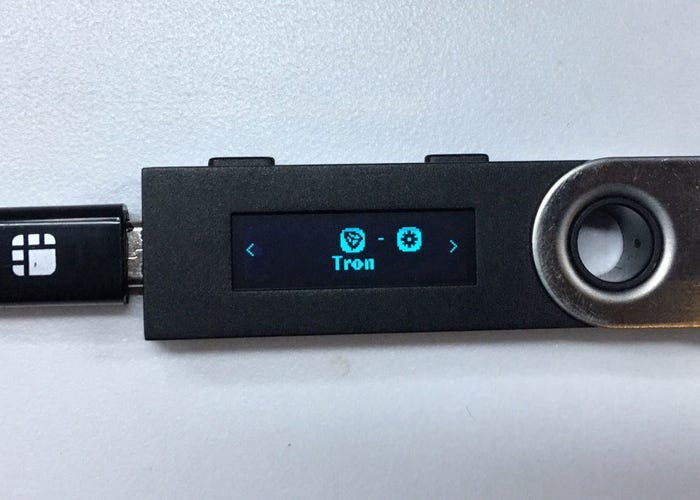
3. Choose TRON app on your ledger.
4.Click SIGN IN once your Ledger device is connected.

Need help?
- Join the TRONSCAN Telegram or submit a request if you require assistance.